

- Outcome: OpenEmails blocks everyone who unsubscribed, bounced or complained in Klaviyo. Your subscribers arrive as contacts. Your lists, segments and designs come over. Klaviyo stops sending email.
- Before you start: the first pull of your Shopify customers must finish. Your agent can’t start a migration before it does.
- You’ll touch:
- Klaviyo: one read-only API key, then the cutover, where you set flows and forms to draft.
- The OpenEmails app: Settings > Klaviyo, and one approval page.
What moves, and what doesn’t
OpenEmails only reads Klaviyo. It never changes anything in your Klaviyo account.
To mark Shopify customers subscribed or unsubscribed, the migration needs Bulk mutations access for your app. Without it, those writes fail. OpenEmails still records the consent and the do-not-email list itself. See Turn on Bulk mutations.
Expect fewer contacts than Klaviyo has profiles. The approval page counts every profile left out, and why.
Two notes on segments:
- Engagement segments. A segment that uses Klaviyo’s engagement comes over as a segment. It also gets a dated “from Klaviyo” list with Klaviyo’s members, and the segment includes them for its window. If a segment exists, send to it. Otherwise, use the dated list.
- Active on Site. OpenEmails doesn’t track site visits. A segment that uses Klaviyo’s Active on Site comes over without that condition, and the approval page says so. If that would include more people than in Klaviyo, the segment comes over as a dated list instead.
Double opt-in. OpenEmails has no double opt-in step. The approval page lists your Klaviyo lists that use it, so you know which ones had a confirmation email.
Very large accounts. A migration of a very large Klaviyo account is not proven yet. Talk to us before you start one.
Run the migration
1
Connect Klaviyo
- In Klaviyo, go to your account’s settings, then API keys. Create a private API key with read-only access.
- In the OpenEmails app, open Settings > Klaviyo and paste the key into Klaviyo private API key.
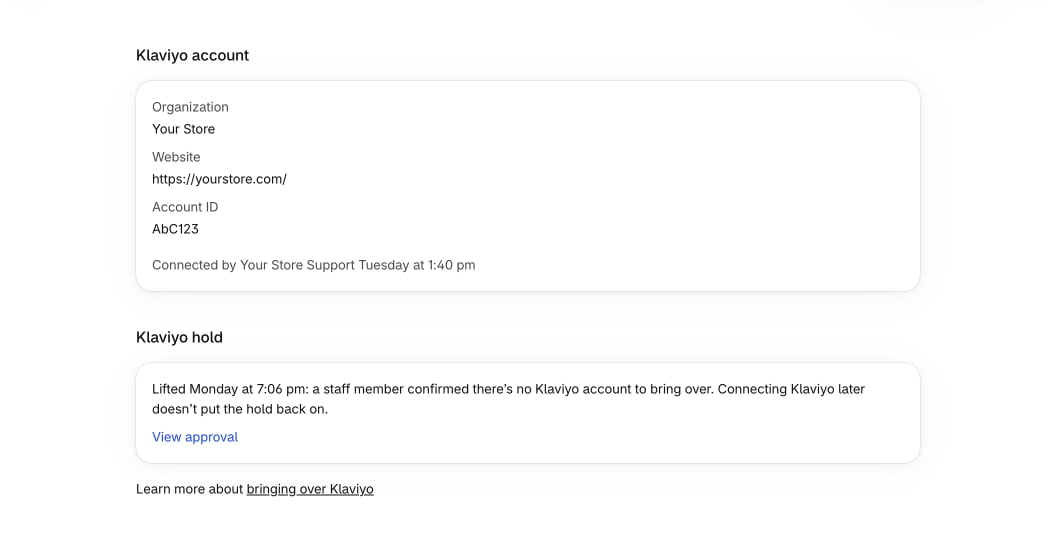
- Choose Check account. OpenEmails asks Klaviyo whose key it is, then shows the organization, website and account ID. It saves nothing yet.
- Make sure it’s your store’s Klaviyo account. A key from another store’s account would bring over that store’s contacts.
- Choose Connect account. OpenEmails stores the key encrypted. No agent can see it, and no agent tool can connect or disconnect Klaviyo.
Checkpoint: Settings > Klaviyo shows Connected and your Klaviyo account. The connection alone doesn’t lift the hold or bring anything over.
2
Ask your agent to read your account
- Ask your agent: “Bring my Klaviyo data over to OpenEmails.” It starts a migration run with
prepare_klaviyo_migration. - The run reads first: every profile, every list with its members, the chosen segments’ members, the flows, the designs and the account. The read needs no approval and changes nothing else.
- By default the run reads Klaviyo’s Engaged (30 Days), Engaged (60 Days) and Engaged (90 Days) segments, where you have them. Tell your agent if you want other segments, or none.
- A large account takes a while to read. Your agent follows the run with
get_klaviyo_migration. Migration run on Settings > Klaviyo shows each phase with its progress. - Only one run is open at a time. A new run ends any run that hasn’t been applied.
Checkpoint: the run reads Ready to review, and your agent can show you its preview.
3
Review and approve
- Your agent asks for your approval and gives you the link. One approval covers the whole run.
- The page, Bring over your Klaviyo account, shows the Klaviyo account and when it was read. Then it shows what the read found:
- Addresses for the do-not-email list, by reason.
- Shopify customers to mark unsubscribed or subscribed. These counts are estimates, and the run checks them again as it applies. The run needs Bulk mutations access to write them.
- Contacts that arrive subscribed, and profiles left out, by reason.
- Your lists, the lists on double opt-in, and the Klaviyo flows each list starts.
- How each segment comes over.
- Your designs and images.
- The approval is bound to Contacts made subscribed. The run can’t make more contacts subscribed than the page shows.
- Check the account name and website one more time. Then choose Approve.
- You can’t approve a read that is more than 7 days old. Ask your agent for a new one.
Checkpoint: the run moves to Applying.
4
Let it apply
- The run applies only what the read found, in this order:
- Anyone who unsubscribed, complained or bounced in Klaviyo since the read began.
- The do-not-email list. The Klaviyo hold lifts once this is in.
- The Shopify customers on that list, marked unsubscribed in Shopify.
- Contacts and their consent. Anyone who unsubscribed here more recently stays unsubscribed.
- The Shopify customers who subscribed in Klaviyo, marked subscribed in Shopify.
- Lists and segments.
- Images, copied to Shopify Files.
- The Klaviyo copy, designs included.
- If the run would make more contacts subscribed than you approved, it stops and needs a fresh approval.
- An image that is too large or can’t be read doesn’t stop the run. The run reports it.
- Steps 3 and 5 need Bulk mutations access. Without it, Shopify refuses those writes, and Home says so.
- When the run finishes, ask your agent to check for failed images, incomplete reads and failed Shopify writes.
Checkpoint: the run reads Applied, and the Klaviyo hold is gone from your agent’s status.
5
Switch Klaviyo off
- Switch off Klaviyo on Settings > Klaviyo is your cutover checklist. It lists what’s still on in Klaviyo: Live flows, Scheduled campaigns and Live forms. Your agent sees the same list.
- The checklist marks each abandoned-checkout flow. It marks a flow that starts when a contact joins a list as Starts on list join, with its list. It marks an SMS-only flow as SMS only.
- Plan each change around its replacement. Before you switch a Klaviyo flow off, make sure its replacement here is ready to take over. For a form, wait until its replacement collects subscribers.
- In Klaviyo, set each email flow and form to draft, and cancel each scheduled email campaign. Don’t delete them.
- Leave SMS-only flows live. If a flow sends both email and SMS, keep its SMS in a separate live flow before you set it to draft.
- The checklist doesn’t show a scheduled campaign’s channel. Check the channel in Klaviyo, and leave SMS campaigns scheduled.
- OpenEmails reads Klaviyo again every 15 minutes, so an item drops off the checklist soon after you switch it off.
Checkpoint: the checklist shows no live email flows, no scheduled email campaigns and no live forms.
6
Keep Klaviyo connected for 30 days, then disconnect
- Emails that Klaviyo already sent carry Klaviyo’s unsubscribe links. The law expects those links to work for 30 days. Keep Klaviyo open and connected for 30 days after the last email it sends.
- While Klaviyo is connected, OpenEmails reads it once a day for new unsubscribes, spam complaints and hard bounces. It puts them on your do-not-email list. It also marks the matching Shopify customer unsubscribed for an unsubscribe or a complaint.
- This daily catch-up needs no approval, because it only means less email. It never adds a subscriber, and it never adds a soft bounce.
- Then choose Disconnect Klaviyo. OpenEmails deletes the saved key, so the checklist and the daily catch-up stop. Everything already brought over stays.
- You can’t disconnect while a run is reading or applying.
Checkpoint: Settings > Klaviyo shows Not connected.
One welcome at cutover
Switch the welcome flow over in order, so a new subscriber gets one welcome. The checklist marks Klaviyo’s welcome flow Starts on list join, with its list. If New subscribers join this list is off for that list:- Get your welcome flow approved and live.
- Turn on New subscribers join this list for the list that Klaviyo’s welcome starts on.
- Right after, set Klaviyo’s welcome flow to draft if it sends email.
- Run the migration once more and approve it. Contacts who joined that list in Klaviyo since the last read come over without a welcome.
- Ask your agent to prepare the welcome flow for approval.
- Set Klaviyo’s welcome flow to draft if it sends email.
- Approve your welcome flow so it goes live.
- Run the migration once more and approve it. Contacts it brings over start no welcome.
Cancel or run it again
Your agent can cancel a run withcancel_klaviyo_migration. It needs no approval to do it.
- While the run reads: the run ends, and OpenEmails deletes what it read.
- While the run applies: it stops at its next chunk and keeps what it already brought over. Nothing is rolled back.
- Once applied: the run can’t be cancelled.
Switch back to Klaviyo
Before Klaviyo sends again, carry the do-not-email entries from OpenEmails back. The daily catch-up runs only from Klaviyo to OpenEmails.- Pause sending here, and keep Klaviyo’s flows and campaigns off.
- On Contacts > Do-not-email list, choose Export entries. Download
do-not-email.csvwithin 24 hours. - Keep the rows that are not lifted. Put the
addressandaddress_basevalues in one column and remove duplicates. - Search Klaviyo for other plus-tag versions of each base address, and add them. Klaviyo has no wildcard suppression.
- In Klaviyo, import the file as suppressions. Never upload it as subscribers.
- Confirm the addresses are suppressed before you turn Klaviyo’s sending on.