

1
Open Home
- Open OpenEmails in your Shopify admin. It opens on Home.
- The banner at the top reads Sending is on or Sending is held. A held banner lists each blocker and who acts on it: you, your agent or OpenEmails. It also gives a button or a prompt to copy.
- The banner reads Sending health warning when bounces, blocks or complaints run high. Sending carries on. See Holds and sending limits.
- Needs your approval counts the approval requests that wait for you and shows the newest three. Choose Review to open one. A request expires 24 hours after your agent asks.
- Results, last 30 days shows Revenue from email, Delivered, Open rate and Click rate. The Subscribers chart shows who joined and left by day. A sudden drop in subscribers is worth a question to your agent. See Reports.
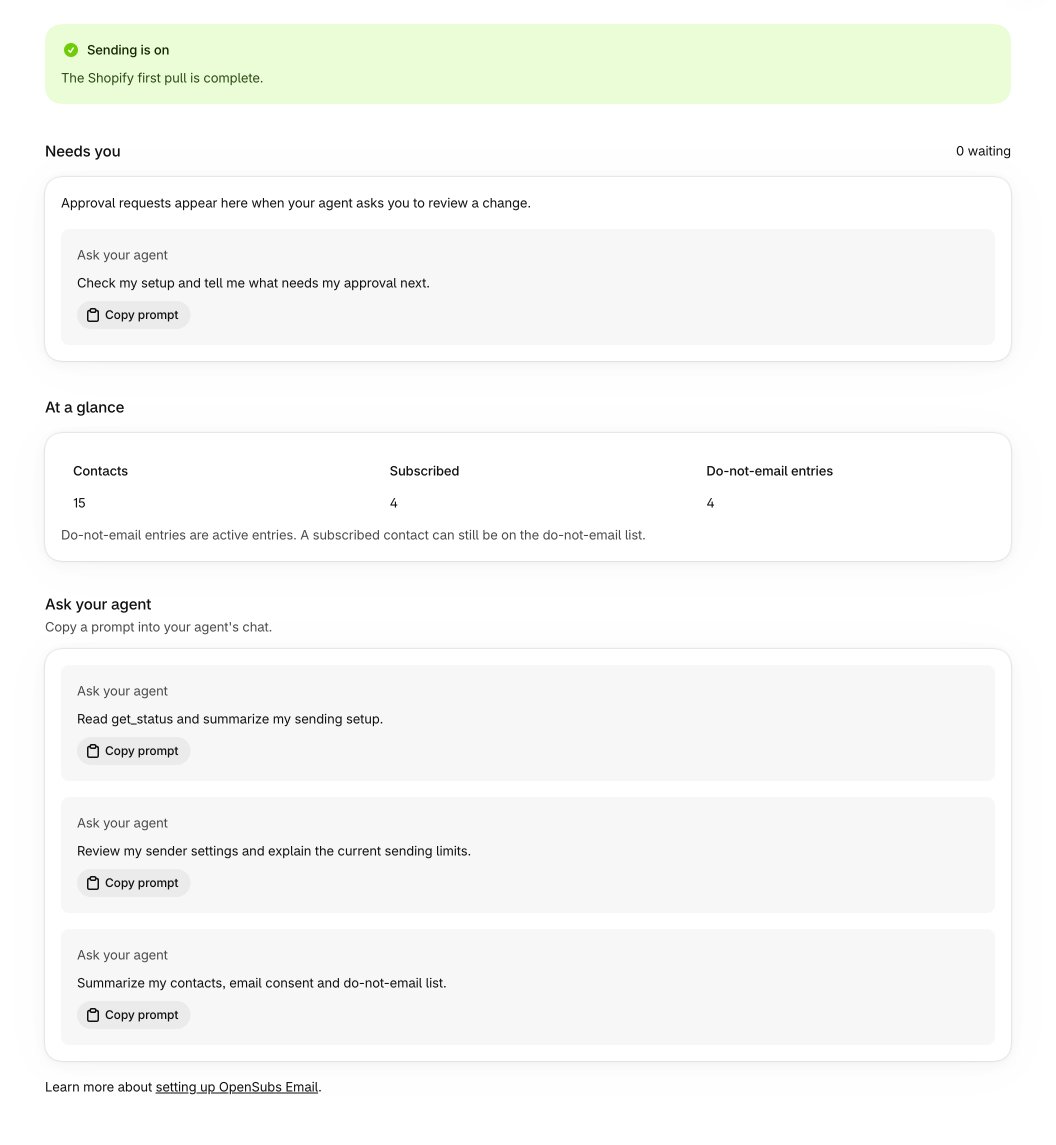
Checkpoint: the banner reads Sending is on, and Needs your approval holds nothing you haven’t decided.
2
Ask your agent
- Paste this into your agent’s chat:
get_statusreturns the same state that Home shows, in more detail. It hasholdsandpauses, the domain check’s findings, and your sender’s limits with how much of them your store used. It also has the Shopify sync streams, every campaign that OpenEmails paused, and the sending health figures.- Every tool result your agent gets also carries a status line. So your agent often mentions a problem before you ask.
Checkpoint: your agent reports no holds, no pauses, and room left under both limits.
3
Act on the warnings that matter
- Most days there are none. When the status line or Home shows one of these, here is what it means:
- A sending health warning also shows in the status line. Its sentence names the kind (hard bounces, policy blocks or spam complaints) and the figures. A warning about one mailbox provider’s spam reports covers your whole PostShiba sending account. See Holds and sending limits.
- Home can also say Shopify sync failed, or that a Shopify webhook has a processing error. Open Settings > Shopify sync to see which stream, and ask your agent to look.
- The store owner’s inbox gets a notice email for each new hold, sender pause, automatic campaign pause and sending health warning. A notice is a reason to open Home. It is not a second thing to fix.
Checkpoint: every warning has an owner. It is fixed, it waits on its own, or your agent has it.