

OpenEmails is in early access, so talk to us to install it.
news.yourstore.com.
You visit your DNS host twice during setup, and your agent gives you every record. Never guess a record from the domain name.
1
Point your hostname at Render
- Your agent opens your DNS host’s page for your domain and shows the CNAME for
email. Its target is the address of your own web service on Render. Copy it from your agent. - Set the record to DNS only. On Cloudflare, turn the proxy off.
- If your domain has no DMARC record, add the TXT record at
_dmarctoo. If it has a valid record, keep it. If it has two records, or a broken record, fix that first. - Your agent checks for the record about once a minute and tells you when it’s in.
Checkpoint: your agent reports
https://email.yourstore.com answering over HTTPS.2
Add PostShiba's records
- Tell your connected agent which sending domain you chose, such as
news.yourstore.com. It sets up the sender for that domain. - Your agent shows the DKIM and return-path records with their type, host and value. The Setup guide on Home shows them too, with Copy host and Copy value.
- Add each record at your DNS host exactly as shown.
Checkpoint: every record is added, and your agent has refreshed their status.
3
Pass the domain check
- Your agent runs the full check. It has three parts:
- PostShiba’s state: your domain may send, its DNS records are verified, your team is in good standing, and the key came from a Team Administrator.
- A check message: OpenEmails sends one message to a PostShiba inbox and reads it back. SPF, DKIM and DMARC must pass and align, and DMARC needs an explicit policy.
- Your address:
email.yourstore.commust answer over HTTPS, because your unsubscribe and tracked links lead there.
- Each problem names the record or setting, the value expected, and who fixes it: you at your DNS host, you in PostShiba, you in Shopify settings, or your agent.
- In PostShiba’s firewall settings, turn off the free mailbox and plus address checks. Your agent can’t change those for you.
- Open Settings > Sending domain to see the same findings and copy each expected value. Click Run check to start a new check. A DNS change can take time to reach every server, so wait before you check again.
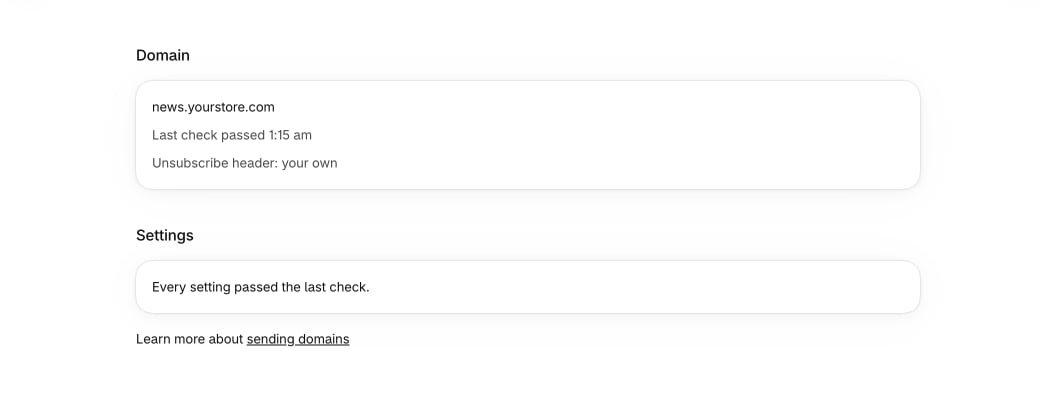
Checkpoint: Settings > Sending domain shows “Every setting passed the last check.” A warning doesn’t block sending. Read each warning anyway.
4
Get PostShiba's approval
- Until PostShiba approves your team, it delivers only to your PostShiba team members’ addresses and live inbox addresses. Mail to anyone else comes back as not approved yet. PostShiba sets that restriction. Your email is not broken.
- A test address in OpenEmails does not change that restriction.
- Finish PostShiba’s approval steps in its dashboard. PostShiba promises no wait time. PostShiba’s approval and an approval in your Shopify admin are separate.
Checkpoint: Settings > Sending limits shows your sender account as Approved.
Warm up your domain
A new sending domain has no history with inbox providers. Start small and grow.- PostShiba keeps its own sending addresses warm. Your domain’s reputation builds from how people respond to your mail.
- Send your first campaigns to your most engaged contacts. In a new copy, those are recent buyers and recent subscribers. Opens don’t count as engagement, and opens and clicks from Klaviyo don’t count.
- Use the campaign’s recipient limit to cap each send. Raise it while bounces and complaints stay low. OpenEmails pauses a campaign when its bounces or complaints spike.
- OpenEmails sets no sending cap of its own. A campaign can be more than twice the most that your sender got in one day over the past 30 days. Then its approval page warns you, and you can still approve it.
- Your agent follows the same plan unless you tell it otherwise.
If the check fails later
OpenEmails checks your domain every day, after the domain changes, and each time you or your agent choose Run check.- Before the first check passes, marketing email waits. Test emails can go out if your sender accepts them.
- After that, one failure doesn’t stop sending. OpenEmails checks again an hour later. If that check fails too, sending goes on hold. The hold lifts by itself when a check passes.
- If PostShiba stops your domain or account, PostShiba pauses sending. That is separate from a hold. PostShiba also emails its team administrators.
- Each new hold or pause sends one notice to the store owner’s email address.
Order, billing and login email
A transactional flow sends order, billing and login emails. Those emails go out on a second PostShiba cluster, of type Transactional, from their own sending subdomain, such asorders.yourstore.com. A store with no transactional flows doesn’t need one.
- You create the cluster yourself in the PostShiba dashboard, because PostShiba bills it to your card.
- Your agent connects it, proposes a subdomain that nothing else uses, and gives you its DNS records.
- Transactional email waits until that domain passes its first check.
Inbox placement of transactional email from your own domain is not proven yet. Send yourself a test before you rely on it.