

Holds
- A hold covers the whole store. More than one can apply at once, and sending starts only when every hold is clear.
- A hold lifts when its cause clears. There is no override.
- Some causes need you first, such as a DNS record or a Shopify plan. Waiting alone doesn’t fix those.
- A campaign that was going out when a hold started carries on once the hold lifts. It needs no resume. Its 48-hour time limit keeps counting.
- A scheduled campaign waits up to 6 hours past its set time. After that it returns to draft and needs a new approval.
get_status under holds. Settings > Sending limits also shows why email is held.
The Klaviyo hold is narrower than the others. It holds campaign and flow emails only. Test emails and notices to the store owner still go out. Test emails skip the consent check, but they respect the do-not-email list.
Not a hold, but sending still stops
- Before the first passing domain check, marketing email waits. Test emails can go out if your sender accepts them.
get_statusshowsblocking_domain_check: true. See Connect your sending domain. - Before OpenEmails first reads your sender’s limits, campaigns and flows wait. It reads the limits every minute.
- A sender stop is a pause, not a hold. PostShiba stopped your domain or account. Flows start again by themselves once PostShiba recovers. A campaign that the stop paused needs a fresh approval to resume.
- PostShiba account state shows on Settings > Sending limits. Waiting means PostShiba hasn’t approved your account yet. Suspended or Held means PostShiba stopped your mail. Messages stay queued in each case. Contact PostShiba to find out why.
One campaign or flow step, not the store
OpenEmails pauses a single campaign by itself when something goes wrong with it. While a campaign goes out, OpenEmails counts its bounces, blocks and complaints about every 5 minutes. It counts over all messages accepted since the campaign started or resumed, and over the latest 10,000.
Each of these needs a fresh approval to resume. So does a campaign that paused after a backup restore. In a flow, a refused email stops only that step, until an approved version replaces it.
Sending health warning
OpenEmails warns you when hard bounces, policy blocks or spam complaints run high. Two kinds of checks can turn the warning on.Campaign and flow checks
Every 5 minutes, OpenEmails adds up the emails that PostShiba processed for this store’s campaigns and flows. It counts the hard bounces, policy blocks and spam complaints among them. Each check looks at marketing email and transactional email separately, and the 7-day checks also look at both together. The warning levels are:Spam reports by mailbox provider
When PostShiba has these figures, OpenEmails reads them once an hour. It warns when email to one mailbox provider’s addresses draws 0.1% or more in spam reports over the last 7 days, once there are 5 reports. These figures cover all mail that your PostShiba sending account handles. If other senders share the account, the figures include their mail too.What the warning does
- Where you see it. Home’s banner reads Sending health warning, with one sentence for each kind. When the top source is a campaign or flow, a button opens it. A warning about one mailbox provider names no campaign or flow. An open campaign or flow approval page shows the warning too. Your agent sees it on every answer from OpenEmails.
- One email. The store owner gets an email when a kind turns on. No second email comes for the same kind within 24 hours.
- It only warns. The warning never pauses, holds or cancels anything. A campaign can still pause itself on its own figures, as in the table above.
- When it clears. The warning clears at the first check where every figure of that kind is below its level again.
- Ask your agent which campaigns and flows the warning names. Look at where their contacts came from.
- For hard bounces, send to contacts who engaged recently. Don’t use addresses you can’t trace to a signup.
- For policy blocks, check your sending domain’s records. Send to your most engaged contacts for a while, and grow volume slowly.
- For spam complaints, email only people who subscribed. Send less often, and keep the unsubscribe link easy to find.
- Ask your agent to read your PostShiba sending account’s reputation figures for the mailbox provider that the warning names.
- If other senders share the account, compare those figures with your campaign and flow checks before you change what you send.
Sending limits
Your sender sets the limits. OpenEmails follows them and sets none of its own.- Two limits. Each PostShiba plan has an hourly limit and a 24-hour limit. Both are rolling. They count the last 60 minutes and the last 24 hours, not the clock hour or the calendar day.
- The hourly pace. Sending stops at 95% of the hourly limit. With a limit of 1,000 an hour, sending waits at 950, and the page shows 0 left. OpenEmails uses the 24-hour limit in full.
- When room opens. Room opens as your oldest email in the last 60 minutes leaves the window. A limit that filled at 10:50 opens at about 11:51, not 11:00. When a 24-hour limit fills, the page can’t say when room opens.
- Shared limits. A PostShiba limit belongs to your cluster. Other mail sent on the same cluster uses it too.
- No limits. A sender without limits shows No hourly or daily limit. Then the only pace is how many messages are on their way at once.
get_status.
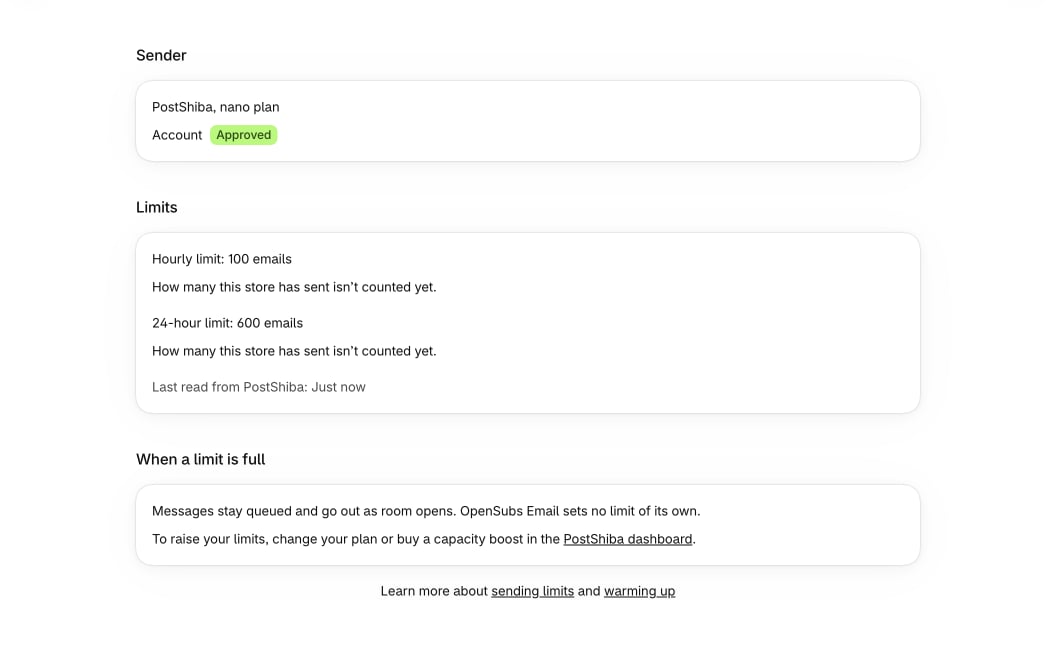
The transactional sender
Order, billing and login emails from a transactional flow go out on a separate transactional sender. It is a second PostShiba cluster with its own sending subdomain, such asorders.yourstore.com.
- The Transactional email section on Settings > Sending limits reads Not set up until your store has one. A store with no transactional flows doesn’t need one.
- To set it up, ask your agent. You create the cluster yourself in the PostShiba dashboard, because PostShiba bills it to your card. Your agent connects it, proposes a subdomain and gives you its DNS records.
- Transactional emails wait until that subdomain passes its first check.
- The transactional sender has its own limits. A full limit on one sender doesn’t hold email on the other.
Inbox placement is not proven yet. We have not yet shown that transactional emails from a merchant’s own domain reach the inbox and not the spam folder. Test with your own orders before you rely on them.
Warm-up
A higher limit doesn’t make a new sending domain trusted. Mailbox providers judge your domain by how people respond to its mail.- PostShiba keeps its shared sending addresses warm, so good delivery starts with the first message. Your domain’s own reputation is yours to build.
- Send the first campaigns to your most engaged contacts.
- Cap each send with the campaign’s recipient limit, and raise it while bounces and complaints stay low. When a limit cuts a list, the most engaged contacts go first.
- “Most engaged” means the most recent order, subscribe or click on an email sent from OpenEmails. Opens don’t count. Opens and clicks recorded in Klaviyo don’t count either.
- When a campaign is more than twice the most your sender was handed in one day over the past 30 days, its approval page warns you. You can still approve it.